
Prevayl

Carrier TMS / The business behind the fleet

From incoming freight
to driver settlement.

Run customer orders, load planning, equipment, drivers and financial review through one operating cycle. Your load board is one source of work. Your TMS runs the company that moves it.

One operating cycle / Six connected steps

Follow the work.
Keep the context.

Select a step to see the decisions, records and handoff involved. Actual carrier screens show the workspaces behind the process.

01 / Receive freight

Bring the work into one operating queue.

Start with direct customer orders, brokered freight or configured EDI tenders. Review the movement details before the order enters load planning.

INSIDE THE CARRIER CONSOLE ACTUAL PRODUCT CAPTURES
PREVAYL / Incoming work, ready for review
Actual carrier freight queue with incoming GM orders, route details, assignment status and shipment milestones. Order identifiers are masked; these loads are unassigned. Captured from a demonstration account containing synthetic and historical records. Screenshots are cropped and redacted; displayed figures are not verified customer results.
Incoming work, ready for review
Enlarged Incoming work, ready for review
See the In-house EDI connection workspace
INSIDE THE CARRIER CONSOLE ACTUAL PRODUCT CAPTURES
PREVAYL / OEM connection activity
The actual OEM partner workspace shows connection status and incoming and outgoing file records. Connection details and file identifiers are masked. Partner setup and acceptance requirements apply. Captured from a demonstration account containing synthetic and historical records. Screenshots are cropped and redacted; displayed figures are not verified customer results.
OEM connection activity
Enlarged OEM connection activity
Review checklist 3 checkpoints
  • Customer and vehicle details
  • Pickup and delivery requirements
  • Partner mapping and connection activity
Next handoffOrders ready for planning →
Link to this step ↗
01 / 06

The driver’s app / Before pickup

Review the driver.
Then authorize the handoff.

Drivers submit their government-issued ID through Upload Driver ID. Your dispatcher reviews the document and approves the identity. Pickup PIN authorization is a separate decision for the assigned load.
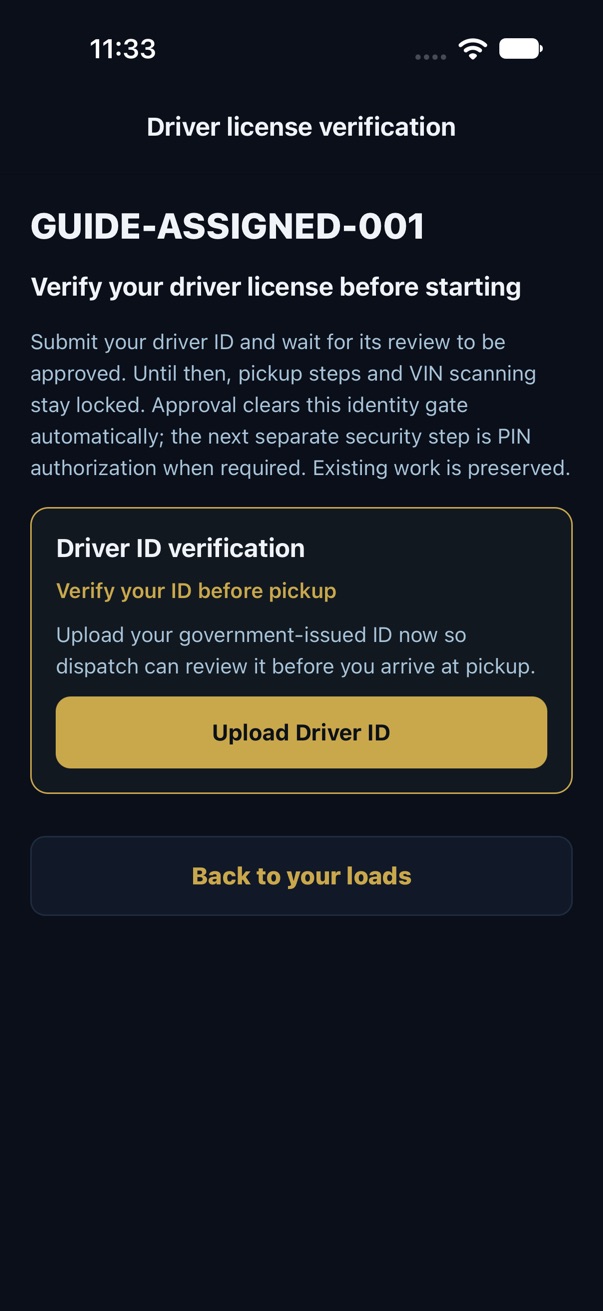
  1. Upload the IDTake a photo or choose a file in the driver app.
  2. Wait for reviewAn uploaded document remains pending until dispatcher approval.
  3. Keep the decisions separateDriver identity approval does not authorize the pickup PIN.
See driver license verification in the platform →
Native driver license verification screen showing Upload Driver ID before pickup steps can continue.
Native iOS review-build capture · version 1.3.0 / build 74 · October 24, 2026

Connected to the way your fleet works

Your providers.
Your customers.
Your operation.

ELD positions on the operations map

Supported ELD connections bring vehicle positions into fleet visibility. Reporting timestamps matter: review freshness alongside available vehicle and load context.

Explore fleet visibility →

EDI and OEM freight exchange

Review partner-specific tender and shipment-status workflows. Connection scope, transaction mapping, credentials and partner acceptance are part of setup.

Explore in-house EDI →

Customer billing and driver pay

Customer invoices, company expenses and driver settlements answer different financial questions. Keep each tied to its supporting operational records.

Explore accounting →

Make the demo match your company

Bring a lane.
Walk through the whole job.

Bring your fleet size, ELD provider, OEM requirements and a driver pay example. Review the workflow, data and setup your team needs.

Plan your carrier demo ↗